


Use your existing collection
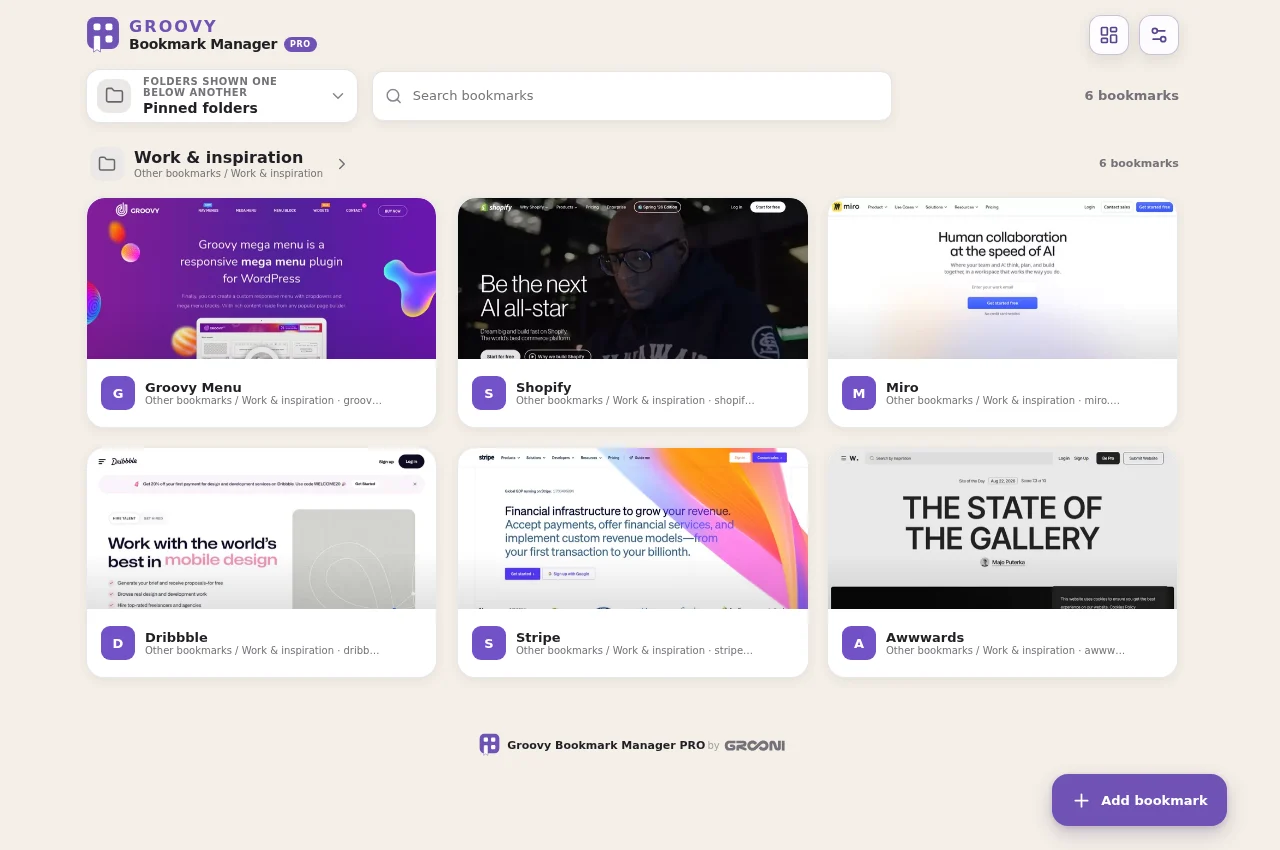
Groovy reads and edits the actual bookmarks in your browser profile. Opening a folder shows its sites and, when enabled, its subfolders. Titles, moves, reordering, and confirmed deletions affect the browser's own collection too.
Use the folder selector to browse the hierarchy or search for a folder. Folder paths help distinguish folders with the same name.
Pin folders to Home
Use a folder's pin/Home control to include it on Home. You can pin more than one folder; their contents appear as separate sections on the same page. Remove the pin to stop showing a section without deleting its bookmarks.
Groovy remembers the last folder and your Home selection. Folder mosaics show several previews from inside each folder, when those previews are available.
Add and edit bookmarks
Open the add-bookmark control, enter the saved page address and title, and select its destination folder. If the Add bookmarks button is hidden, enable its display in Settings.
Use the tile's three-dot menu to edit a title, change a cover, or access other actions. A browser bookmark and a private link inside a Vault are different kinds of stored items; see Folder protection.